Home office setup guide: everything you need in 2026
We've set up dozens of home offices over the past four years, for ourselves and for every remote worker who's asked us what to buy. The same questions come up every time: How much should I spend? Do I really need a standing desk? What monitor size is right? Is any of this tax-deductible?
This guide answers all of them. We're covering every major category of home office gear, with specific product recommendations at specific price points. No vague "invest in a good chair" advice. Actual model numbers, actual dollar amounts, and the reasoning behind each pick.
If you just want the quick list, here's what a complete setup costs:
| Category | Budget Pick | Best Pick | Price Range |
|---|---|---|---|
| Desk | FlexiSpot E7 | Uplift V2 | $479 - $599 |
| Chair | HON Ignition 2.0 | Herman Miller Aeron | $350 - $1,395 |
| Monitor | Dell S2722QC | LG 27UN850 | $299 - $346 |
| Keyboard | Keychron K2 | Logitech MX Keys | $79 - $99 |
| Mouse | Logitech M750 | Logitech MX Master 3S | $39 - $99 |
| Lighting | Ring light ($35) | Elgato Key Light | $35 - $199 |
| Webcam | Logitech C920 | Logitech Brio 4K | $69 - $169 |
| Cable Mgmt | Velcro ties | Under-desk tray | $8 - $40 |
| Networking | Cat6 cable | TP-Link Deco mesh | $12 - $179 |
| Total range | $1,370 - $3,125 | ||
Now let's break each category down.
The foundation: desk and chair
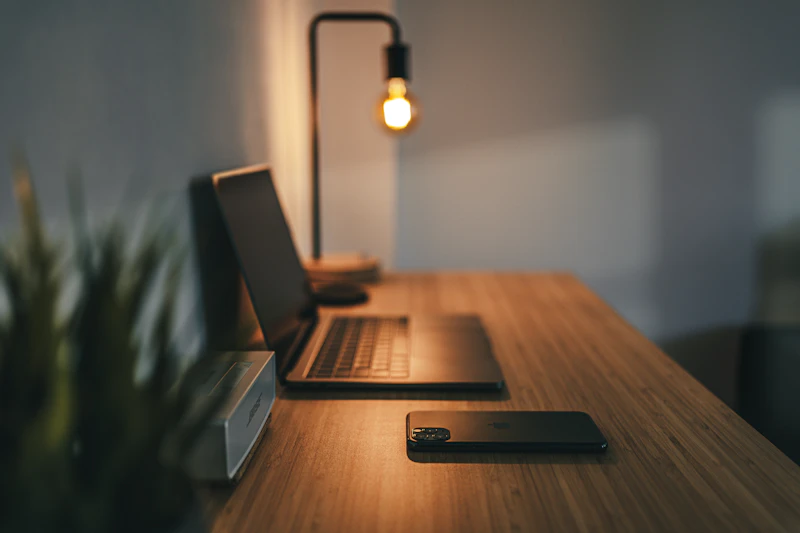
The desk and chair are the two pieces of gear you physically interact with for 8+ hours a day. They affect your posture, energy levels, and long-term health more than any other purchase on this list. We always tell people to allocate at least 50% of their home office budget here.
Choosing a desk
We strongly recommend a sit-stand desk over a fixed-height desk. The research on alternating between sitting and standing is clear: it reduces lower back pain, improves circulation, and helps maintain focus during afternoon slumps. We covered this extensively in our standing desk rankings, but here's the summary.
The Uplift V2 ($599) is the best standing desk we've tested. Dual motors, 355 lb capacity, virtually zero wobble at standing height, and a 15-year warranty. It's the desk we use daily. If $599 is a stretch, the FlexiSpot E7 ($479) delivers 90% of the same performance for $120 less. Both have 4 programmable height presets, anti-collision detection, and fast motor transitions.
For the absolute budget floor, the Fezibo ($200) is a single-motor desk that works surprisingly well for the price. It wobbles at standing height, but it's functional, and it ships Prime.
Choosing a chair
The chair market is more confusing than the desk market because the price range is enormous: $150 to $2,000+. After testing chairs across that entire range, here's what we've found.
The Herman Miller Aeron ($1,395 new) is the gold standard for a reason. PostureFit SL lumbar support, fully adjustable arms, breathable mesh that doesn't trap heat, and a 12-year warranty. We've used Aerons for 3+ years and they still feel new. Yes, $1,395 is a lot. But spread over 12 years, that's $116 per year for something you sit in 2,000+ hours annually.
If $1,395 makes you wince, look at the Steelcase Leap ($1,049 refurbished through Crandall Office) or the HON Ignition 2.0 ($350), which is the best budget ergonomic chair we've found. Avoid gaming chairs. They look aggressive and perform terribly for 8-hour work sessions.
One more option worth mentioning: refurbished Herman Miller chairs run $500-$700 through dealers like Crandall Office Furniture or Madison Seating. Same chair, same warranty coverage, half the price. We've bought three refurbished Aerons and every one has been flawless.
Monitor setup
After the desk and chair, the monitor has the biggest impact on your daily work experience. Screen size, resolution, and panel type all matter, and the wrong choice leads to eye strain, neck pain, or both.
The sweet spot: 27" 4K
For most remote workers, a 27-inch 4K (3840 x 2160) IPS monitor is the right pick. At 27 inches, 4K resolution gives you 163 PPI, which means text is crisp at any scaling level. You get enough screen real estate to split two apps side by side without squinting, and 4K is sharp enough that you can work at native resolution or scale to 150% without fuzziness.
Our top pick is the Dell S2722QC at $299. It's a 27" 4K IPS panel with USB-C connectivity (65W charging), so you can connect your laptop with a single cable that delivers video and power simultaneously. Color accuracy is solid for everything except professional photo editing. Built-in speakers are mediocre, but you'll use headphones anyway.
The LG 27UN850-W ($346) is the step-up option. It adds a wider color gamut (DCI-P3 95%), HDR10 support, and a USB-C hub with daisy-chaining. If color accuracy matters for your work (design, video, photography), the LG is worth the extra $47.
The ultrawide alternative
If you want to eliminate dual-monitor bezels entirely, a 34-inch ultrawide (3440 x 1440) replaces two monitors with a single curved panel. The LG 34WN80C-B ($499) is our ultrawide pick. It's excellent for developers who want a terminal next to their editor, or for anyone who juggles spreadsheets and documents side by side. The downside: 1440p vertical resolution feels cramped compared to 4K for text-heavy work, and ultrawides don't stack well if you later want a second display above.
Keyboard and mouse
Keyboards and mice are personal. What feels great to one person feels terrible to another. That said, after cycling through dozens of options across our team, here are the patterns we've noticed.
Keyboards
The Keychron K2 ($79) is the best entry point into mechanical keyboards for office work. It's a 75% layout (compact but retains function keys), connects via Bluetooth or USB-C, and supports hot-swappable switches so you can try different key feels without buying a new board. Get the brown switches for a tactile bump without the loud click. Your video call colleagues will thank you.
If you prefer low-profile, laptop-style keys, the Logitech MX Keys ($99) is the best membrane keyboard on the market. Backlit, Bluetooth or USB receiver, and Logitech's software lets you map custom shortcuts per application. The typing feel is quiet and predictable. We've seen these last 4+ years with daily use.
For programmers who want split ergonomic layouts, the ZSA Voyager ($365) or Kinesis Advantage360 ($449) are worth investigating, but those are niche picks. For 90% of remote workers, the Keychron K2 or MX Keys is the right call.
Mice
The Logitech MX Master 3S ($99) has been our daily driver for two years running. The ergonomic shape eliminates wrist strain during long sessions, the electromagnetic scroll wheel is silky smooth, and the thumb scroll wheel is genuinely useful for horizontal scrolling in spreadsheets and timelines. Pairs with up to three devices and switches between them with a button press.
On a budget, the Logitech M750 ($39) is a lighter, simpler version with the same multi-device pairing. It lacks the thumb wheel and the scroll wheel isn't as refined, but it's comfortable and reliable.
For anyone experiencing wrist pain, consider a vertical mouse like the Logitech MX Vertical ($79). It takes a week to adjust to the handshake grip, but it completely eliminates the forearm rotation that causes repetitive strain injuries.

Lighting and webcam
Bad lighting is the single most common problem we see in home office setups, and it's the cheapest to fix. You can spend $2,000 on your desk and chair, but if your face is backlit by a window during video calls, you'll look like a witness protection interview.
Lighting
There are two lighting problems to solve: ambient room lighting (so your eyes don't strain) and face lighting (so you look professional on camera).
For face lighting, the Elgato Key Light ($199) is the standard. It mounts on a desk clamp, produces 2,800 lumens, and you control brightness and color temperature from your phone or desktop app. One Key Light positioned 45 degrees to your left or right, slightly above eye level, transforms your video call presence. We've A/B tested this with clients and the difference is dramatic.
If $199 is too steep, a ring light ($35 on Amazon) mounted behind your monitor does 80% of the job. Look for one with adjustable color temperature (3000K to 6500K) so you can match your room's ambient lighting. The Neewer 10-inch ring light at $35 is the most popular option for a reason.
For ambient room lighting, avoid overhead fluorescent tubes. They create harsh shadows and cause eye fatigue. A desk lamp with adjustable color temperature (the BenQ ScreenBar at $109) or a bias light strip behind your monitor ($15 on Amazon) makes a noticeable difference during long work sessions.
Webcam
Your laptop's built-in webcam is probably 720p and sits at an unflattering angle below your face. An external webcam fixes both problems.
The Logitech Brio 4K ($169) is the best webcam for remote work. 4K resolution (though most calls compress to 1080p anyway), HDR for handling mixed lighting, and Windows Hello facial recognition for passwordless login. The autofocus is fast and reliable. Mount it on top of your external monitor for a natural eye-level angle.
The Logitech C920 ($69) is the budget pick that's been the default webcam recommendation for years. 1080p, decent autofocus, built-in stereo mics. It looks fine. Not great, but fine. If you're rarely on camera, this is all you need.
One thing we want to flag: if you already own a recent iPhone or Android phone, you can use it as a webcam for free. Apple's Continuity Camera (macOS) and third-party apps like Camo turn your phone's camera into a webcam that's better than any dedicated webcam on the market. The sensor in a modern phone crushes anything Logitech makes. Worth trying before you spend $169.
Cable management and organization
This is the most overlooked part of any home office setup, and it's the one that separates a workspace from a mess. Cable management takes 30 minutes to set up and saves you hours of frustration over the following months.
Under-desk cable tray
An under-desk cable tray ($25-$40 on Amazon) mounts beneath your desk surface and holds your power strip, chargers, and cable slack out of sight. The J Channel Cable Raceway ($25 for a two-pack) is the simplest option: adhesive-backed channels that stick under the desk and contain cables. For a more robust solution, the VIVO Under-Desk Cable Management Tray ($16) clamps to the desk and provides an open basket for everything.
Velcro cable ties
Velcro cable ties ($8 for a 50-pack) are the single best cable management purchase you can make. Wrap individual cables, bundle groups together, and attach them to desk legs or cable trays. They're reusable, adjustable, and infinitely better than zip ties (which you have to cut and replace every time you change something). Buy a pack. You'll use all 50.
The rest of the organization stack
A few more items that make a real difference:
- Desk shelf or monitor riser ($30-$60): Raises your monitor to eye level if you're not using a monitor arm, and creates storage underneath for notebooks, chargers, and small items.
- Headphone hook ($8-$12): Clamps to the desk edge. Keeps your headphones accessible instead of lying on the desk taking up space.
- Desk pad / mat ($20-$40): A large felt or leather desk pad protects your desktop surface and provides a unified look. The Grovemade Matte Desk Pad ($75) is premium; a generic Amazon leather pad ($25) works nearly as well.
- USB-C hub or dock ($45-$150): If your laptop only has USB-C ports, a dock like the Anker 341 USB-C Hub ($45) or CalDigit TS4 ($379 for the full thunderbolt dock) connects all your peripherals through a single cable.
Internet and networking
You can have a $3,000 desk setup and still look terrible on a video call if your internet connection is dropping packets. Networking is infrastructure, not an afterthought.
Speed requirements
For a single remote worker on video calls, the baseline is 25 Mbps down and 5 Mbps up. That handles a Zoom or Teams call at 1080p with headroom for screen sharing. If your household has multiple remote workers, or if you're simultaneously streaming, uploading large files, or running cloud-based dev environments, aim for 100 Mbps symmetric (equal upload and download).
Upload speed is the bottleneck most people ignore. Your ISP advertises the download number because it's bigger. But video calls are symmetric: you send as much data as you receive. If your plan is "200 Mbps download, 10 Mbps upload," you'll still buffer on group calls during peak hours.
WiFi vs. Ethernet
If your desk is within 15 feet of your router, run a Cat6 Ethernet cable ($12 for 25 feet on Amazon). Wired connections eliminate WiFi variability, reduce latency by 5-15ms, and never drop during calls because your neighbor's microwave turned on. It's the single most reliable upgrade for video call quality, and it costs $12.
If your office is far from the router or running cable isn't practical, a mesh WiFi system solves dead spots and weak signals. The TP-Link Deco X55 ($179 for a 3-pack) covers up to 6,500 sq ft and supports WiFi 6. Place one node near your office and you'll get near-wired speeds wirelessly. The Eero Pro 6E ($229 for a 2-pack) is the premium option with WiFi 6E and faster throughput.
One networking detail that matters: if your ISP-provided router is more than 3 years old, it's probably the weakest link in your setup. Replacing it with a mesh system or a dedicated router (like the TP-Link Archer AX73, $129) can double your effective speeds without changing your internet plan.
Tax deductions for your home office
If you're self-employed, a 1099 contractor, or a freelancer, most of the gear in this guide is tax-deductible. The IRS allows you to deduct expenses for a home office that is used "regularly and exclusively" for business. We wrote a full breakdown of remote work tax deductions in 2026, but here are the key points.
What qualifies
- Office furniture: Desks, chairs, shelves, and lighting used exclusively for work.
- Computer equipment: Monitors, keyboards, mice, webcams, headphones, docks.
- Internet costs: A proportional share of your monthly internet bill (based on business use percentage).
- Office supplies: Cable management gear, desk pads, organizers, printer ink.
- Rent or mortgage: A proportional share based on your home office square footage (using the simplified method at $5/sq ft, up to 300 sq ft, for a max $1,500 deduction).
The $2,500 rule
Individual equipment purchases under $2,500 can be expensed immediately under the de minimis safe harbor election. That means a $599 desk, a $1,395 chair, and a $299 monitor are each fully deductible in the year you buy them. If you buy a single item over $2,500 (rare for home office gear), you'll need to depreciate it over multiple years.
Keep receipts for everything. Digital receipts are fine. Photograph physical receipts the day you get them because thermal paper fades. We use a dedicated folder in Google Drive labeled "Home Office [Year]" and dump every receipt there. If the IRS ever asks, you want to have documentation ready.
For more tax strategies specific to remote workers and freelancers, CeoCult covers self-employment taxes, estimated quarterly payments, and entity structuring in depth.
Software and productivity tools
Hardware is only half the equation. The software running on your machine determines whether your home office actually makes you productive or just looks productive.
We won't go deep on software here (that's a separate guide), but a few tools are essential enough to mention:
- Window management: On macOS, Rectangle (free) lets you snap windows to halves, thirds, and quarters using keyboard shortcuts. On Windows, the built-in Snap Layouts (Win + Z) do the same thing natively. These are mandatory with a large or ultrawide monitor.
- Focus tools: Time-blocking apps like AI-powered productivity tools can automate scheduling and help maintain deep work blocks. Nesyona has a solid roundup of what's worth using in 2026.
- Password manager: 1Password ($36/year) or Bitwarden (free). Non-negotiable for remote work security, especially on personal devices.
- VPN: If your employer requires one, use theirs. If you want personal privacy, Mullvad ($5.50/month) is the most transparent option. Worth noting: your employer may be monitoring your work device regardless of VPN use.
Putting it all together: three sample builds
We've assembled three complete builds at different budgets. Each one is a full, functional home office setup.
Budget build: $1,370
| Item | Product | Price |
|---|---|---|
| Desk | FlexiSpot E7 (55" x 28") | $479 |
| Chair | HON Ignition 2.0 | $350 |
| Monitor | Dell S2722QC 27" 4K | $299 |
| Keyboard | Keychron K2 | $79 |
| Mouse | Logitech M750 | $39 |
| Webcam | Logitech C920 | $69 |
| Lighting | Neewer 10" Ring Light | $35 |
| Cable Mgmt | Velcro ties + J Channel | $33 |
| Networking | Cat6 Ethernet cable (25ft) | $12 |
| Total | $1,395 | |
Mid-range build: $2,200
| Item | Product | Price |
|---|---|---|
| Desk | Uplift V2 (60" x 30") | $599 |
| Chair | Steelcase Leap (refurbished) | $549 |
| Monitor | LG 27UN850-W 27" 4K | $346 |
| Keyboard | Logitech MX Keys | $99 |
| Mouse | Logitech MX Master 3S | $99 |
| Webcam | Logitech Brio 4K | $169 |
| Lighting | Elgato Key Light | $199 |
| Cable Mgmt | VIVO Tray + Velcro ties | $24 |
| Monitor Arm | AmazonBasics Monitor Arm | $109 |
| Networking | Cat6 cable + new router | $141 |
| Total | $2,334 | |
Premium build: $3,100+
| Item | Product | Price |
|---|---|---|
| Desk | Uplift V2 (72" bamboo top) | $799 |
| Chair | Herman Miller Aeron (new) | $1,395 |
| Monitor | LG 34WN80C-B 34" Ultrawide | $499 |
| Keyboard | Logitech MX Keys | $99 |
| Mouse | Logitech MX Master 3S | $99 |
| Webcam | Logitech Brio 4K | $169 |
| Lighting | Elgato Key Light + BenQ ScreenBar | $308 |
| Cable Mgmt | Full tray + raceway + Velcro | $50 |
| Monitor Arm | Ergotron LX (ultrawide rated) | $139 |
| Networking | TP-Link Deco X55 mesh (3-pack) | $179 |
| Total | $3,736 | |
Common mistakes we see
After setting up dozens of home offices, these are the errors that keep coming up:
- Buying the monitor first, the chair last. People spend $500 on a monitor and $150 on a chair. Flip those priorities. Your back will be the bottleneck, not your pixels.
- Ignoring lighting. A $35 ring light makes more difference on video calls than a $169 webcam upgrade. Fix the lighting before upgrading the camera.
- Using WiFi when Ethernet is available. If your router is in the next room, spend $12 on a cable. The reliability difference is immediate.
- Skipping cable management. It takes 30 minutes. It makes the space feel professional instead of chaotic. Just do it during initial setup when everything is already unplugged.
- Not claiming tax deductions. If you're self-employed and you bought a desk, chair, and monitor this year, that could be $2,000+ in deductions you're leaving on the table. Read our tax deduction guide and keep your receipts.
- Over-investing in "productivity" gear. A $400 mechanical keyboard won't make you more productive than a $79 one. Diminishing returns kick in hard above the mid-range for most peripherals.
The best home office is one that removes friction. You sit down, everything works, nothing hurts, the video call looks good, and you can focus. That doesn't require $5,000. It requires spending $1,500-$2,500 in the right places.
If you're starting from scratch, buy the desk, chair, and monitor first. Use your laptop keyboard and trackpad for a month while you figure out which peripherals you actually want. Layer in upgrades as your workflow clarifies what you need.
And if you're self-employed, track every purchase. Your home office is a business expense. Treat it like one.
Frequently Asked Questions
How much does a full home office setup cost?
A solid home office setup runs $1,500 to $3,000 for the core gear: desk ($200-$600), chair ($300-$1,400), monitor ($300-$500), keyboard and mouse ($100-$200), lighting and webcam ($150-$370), and cable management ($30-$50). You can go cheaper by buying used or skipping non-essentials, but cutting corners on the desk and chair will cost you in back pain and productivity within six months.
Can I deduct my home office setup on my taxes?
If you're self-employed or a 1099 contractor, yes. You can deduct home office equipment, furniture, and a portion of your rent or mortgage under the home office deduction. W-2 employees cannot deduct home office expenses on their federal taxes (the Tax Cuts and Jobs Act suspended this through at least 2025), though some states allow it. Equipment under $2,500 can usually be expensed immediately under the de minimis safe harbor election. See our full tax deduction guide for details.
Do I need a standing desk for my home office?
Not strictly required, but strongly recommended. Alternating between sitting and standing reduces back pain, improves circulation, and helps maintain focus during long work sessions. If budget is a concern, even a $200 entry-level standing desk like the Fezibo is a meaningful upgrade over a fixed-height desk. We tested and ranked eight standing desks in our standing desk guide.
What internet speed do I need for remote work?
For one person on video calls, 25 Mbps download and 5 Mbps upload is the minimum. For a household with multiple remote workers or simultaneous streaming, aim for 100 Mbps or higher. Upload speed matters more than most people realize, since video calls send as much data as they receive. If your upload speed is under 10 Mbps, prioritize upgrading your internet plan before buying new gear.
Get home office gear deals in your inbox
We track prices on every product in this guide and alert you when they drop.